Mini-Project: Create your Voki Avatar!
Here is Kimi's avatar. As you may well remember, Kimi is the Japanese girl whose self-introduction you read in earlier. Click the photo below and listen to her.
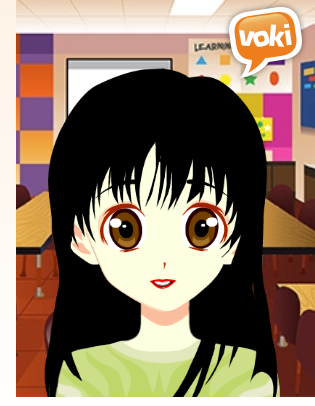
Kimi's Avatar in Voki. Ana Losada e José Luis Murado. CC BY-SA
Use the text about you that you wrote earlier. When you get the teacher’s feedback, create your own Voki Avatar. Follow these steps:
Step 1
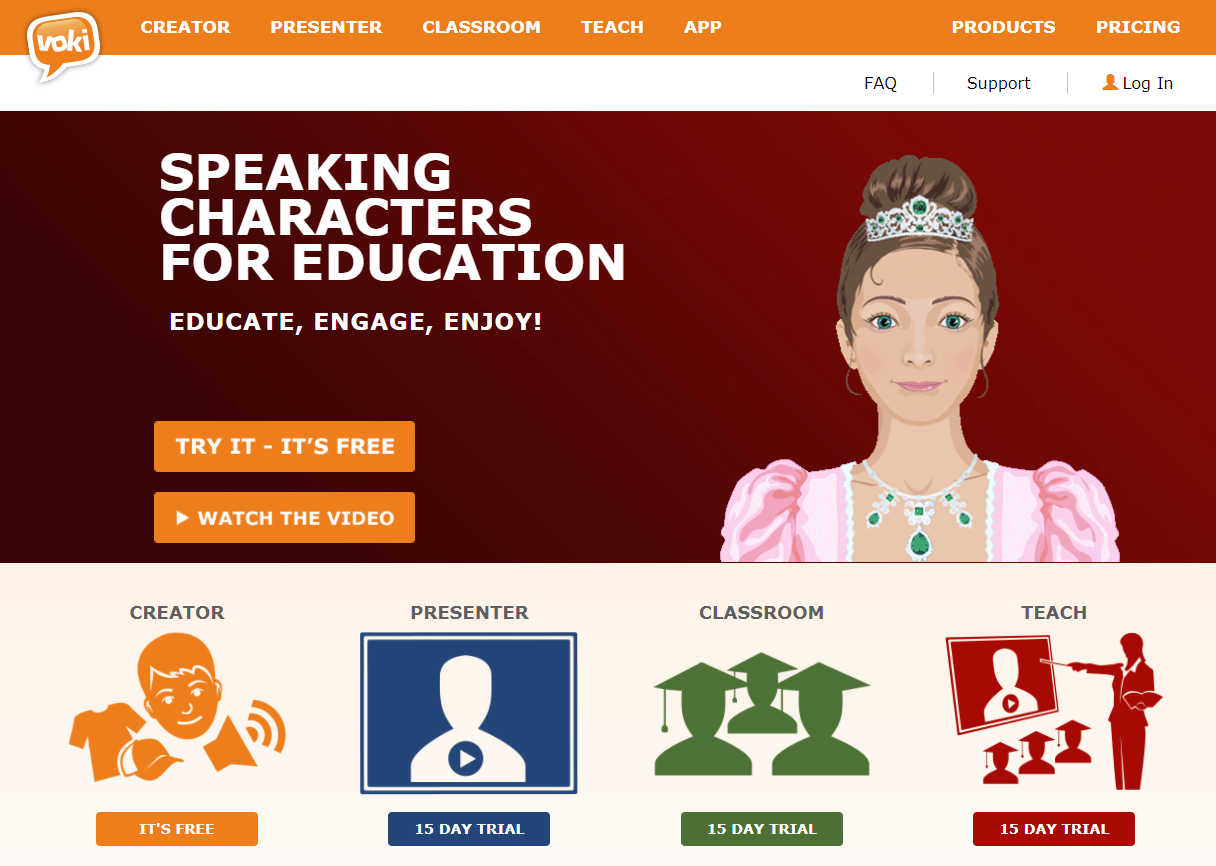
Go to the Voki Home Page http://www.voki.com/ and Register. Make sure you remember your password. You can write it in the box. You must be registered to save any avatars you make.
Ana Losada e José Luis Murado. CC BY-SA
Check your e-mail. You will receive a notification that you’re registered. You must activate by clicking on the link provided in the e-mail.
Step 2
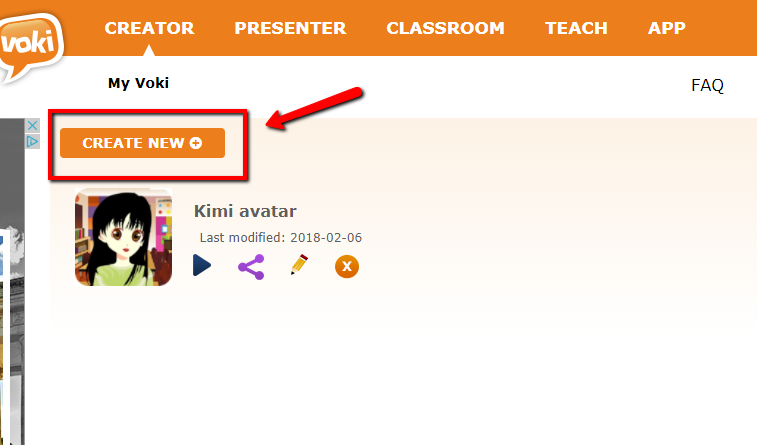
Return to www.voki.com, and log-in. You are ready to make your Avatar. Click on Create New.
Ana Losada e José Luis Murado. CC BY-SA
Step 3
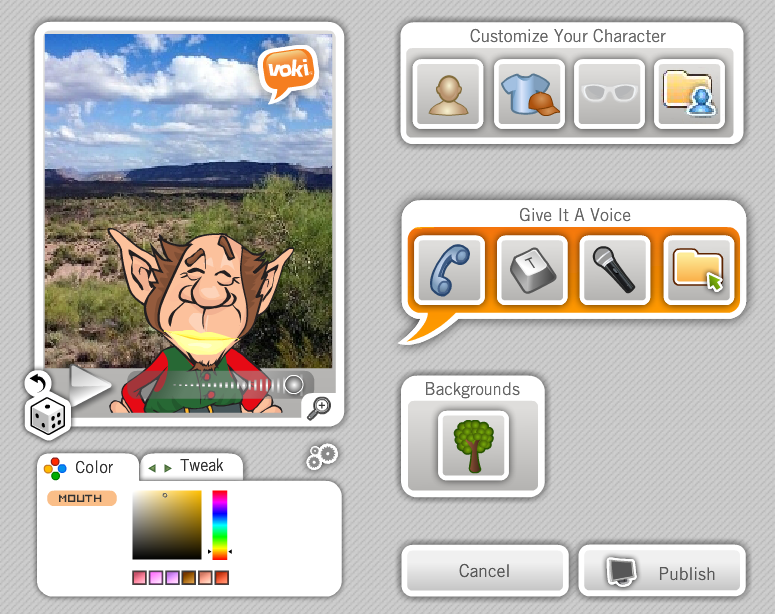
You need to customize your character.
Ana Losada e José Luis Murado. CC BY-SA
Step 4
Click the head icon. Then, select a character from the different models provided. If you want a realistic Avatar choose one of the models from the Classic Head Models. Try to find a model that looks like the celebrity you’ve chosen, but don’t worry if it isn’t exactly similar. You can customize the heads. Choose the hair, the lips and facial hair to modify your characters. When you finish, click on DONE.
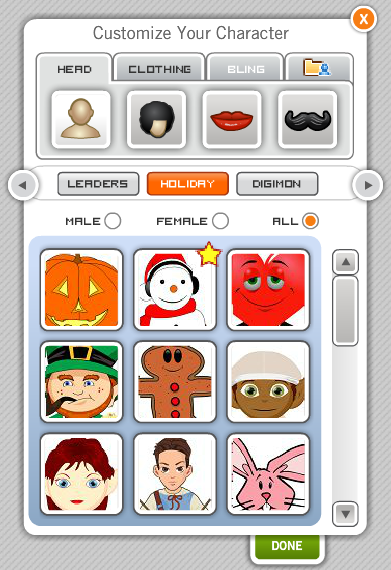
Ana Losada e José Luis Murado. CC BY-SA
Step 5
Now, it’s time for clothing (there are a lot of styles to choose from), and finally accessories which they call Bling (mainly glasses and jewelry). Once you have customized the character, click on DONE at the bottom.
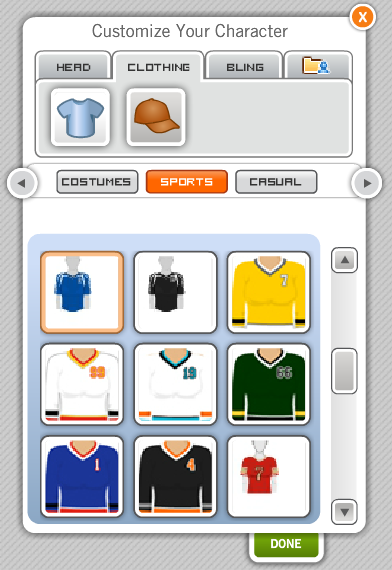
Ana Losada e José Luis Murado. CC BY-SA
Step 6
Next, we’re going to give your avatar a voice. Click on the microphone icon, RECORD and start saying your text. When you finish, click DONE.
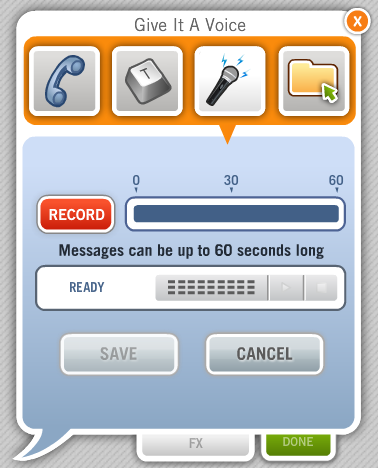
Ana Losada e José Luis Murado. CC BY-SA
Now we are going to select a background. Click on the tree icon. You can choose one of the may backgrounds from their menus.
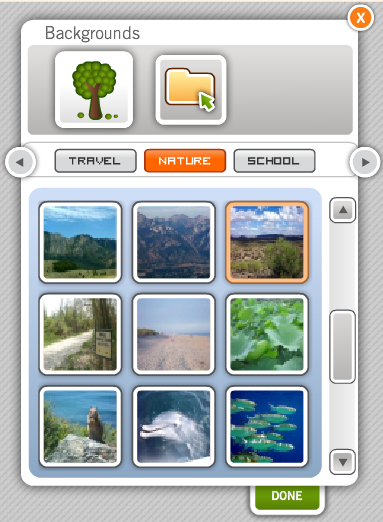
Ana Losada e José Luis Murado. CC BY-SA
Step 7
Now you are ready to publish your AVATAR by clicking on the PUBLISH button. Give your avatar a Title and then SAVE.

Ana Losada e José Luis Murado. CC BY-SA
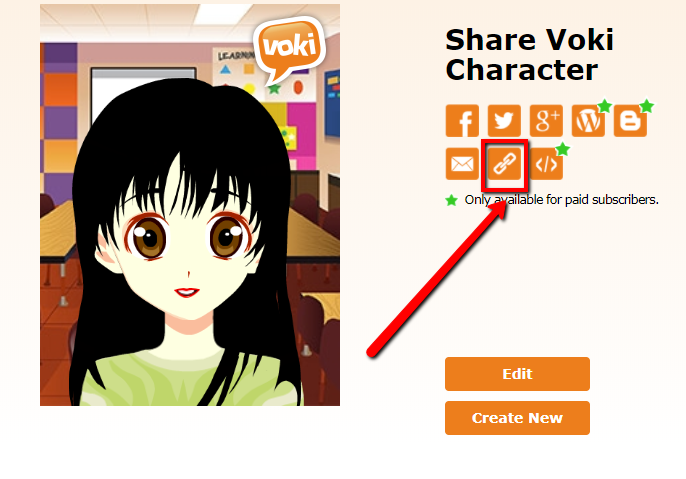
You will get to this screen. Copy the link and send it to your teacher, who can publish it on the class blog. Kimi's avatar is below.
Ana Losada e José Luis Murado. CC BY-SA