Mini-project: Create a classroom schedule
Now that you are familiar with school subjects, places and times, why not creating a weekly schedule in English?
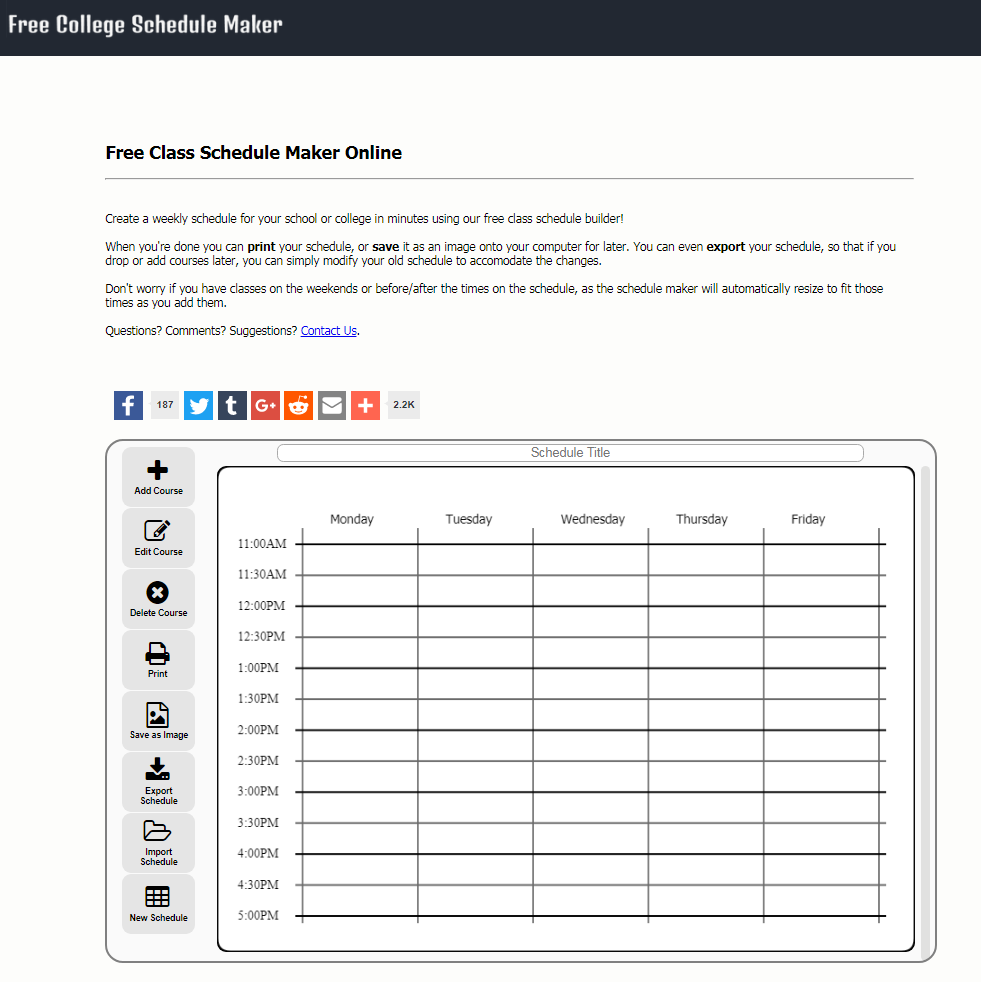
Schedule Maker. Ana Losada e José Luis Murado. CC BY-SA
It’s very easy!! You need to go to the website “Free College Schedule Maker” and follow these steps.:
Step 1
Click the link below:
https://www.freecollegeschedulemaker.com/
Then, type a title for your schedule
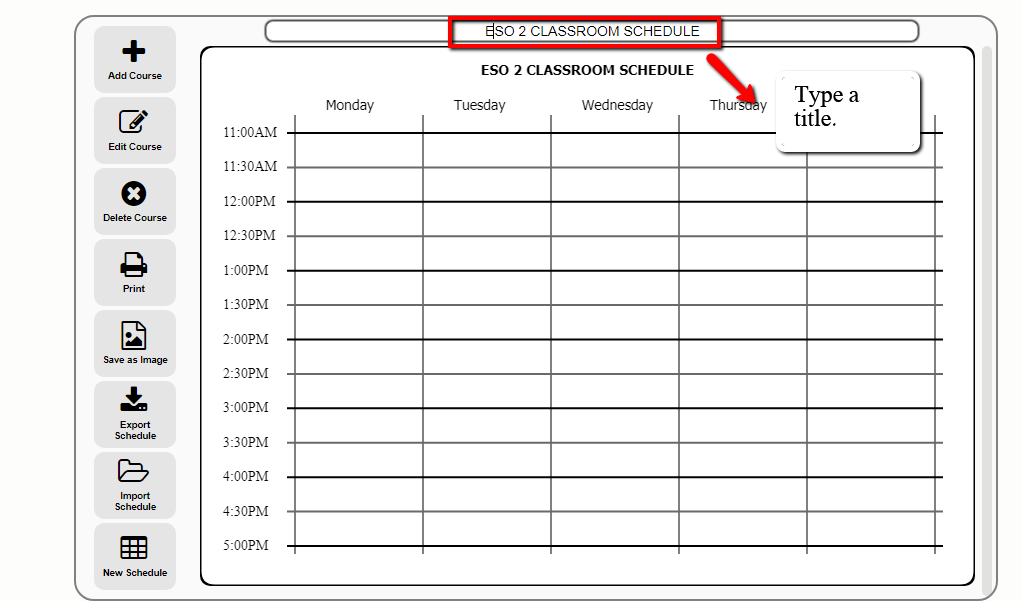
Ana Losada e José Luis Murado. CC BY-SA
Step 2
Click ADD COURSE to add the schedule of each subject.
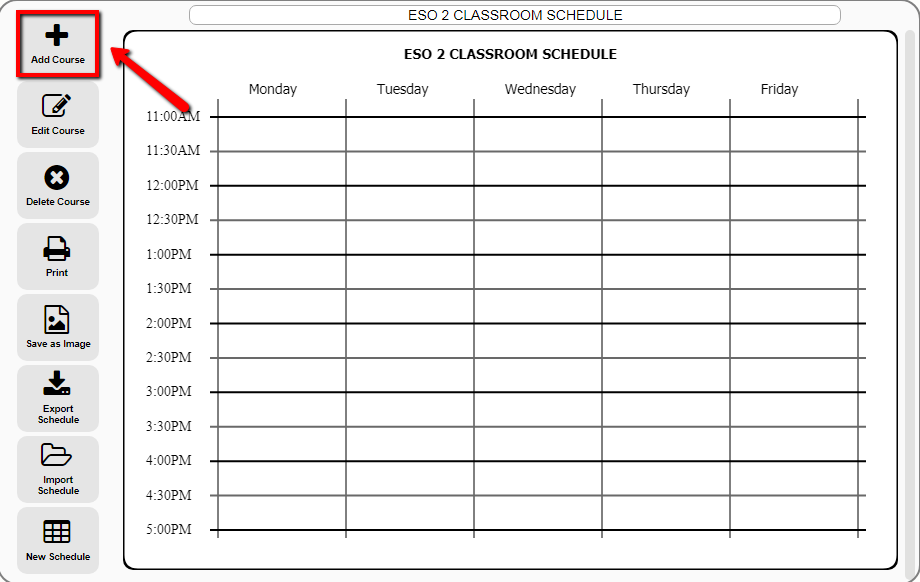
Ana Losada e José Luis Murado. CC BY-SA
Step 3
To add the schedule of each subject, you need to…
- Type the course title, for example: Physics and Chemistry
- Select a colour (blue)
- Select the day(s) and the type the start time, the end time and the location. If these times vary, click ADD ANOTHER MEETING TIME and select day, start time, end time and location.
- Click SUBMIT when you have added all the days, times and location(s)
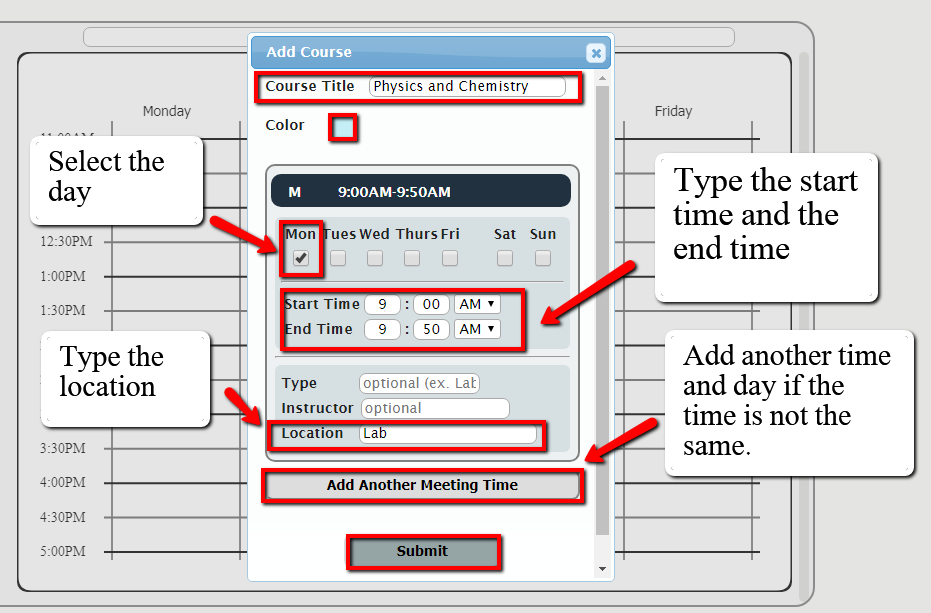
Ana Losada e José Luis Murado. CC BY-SA
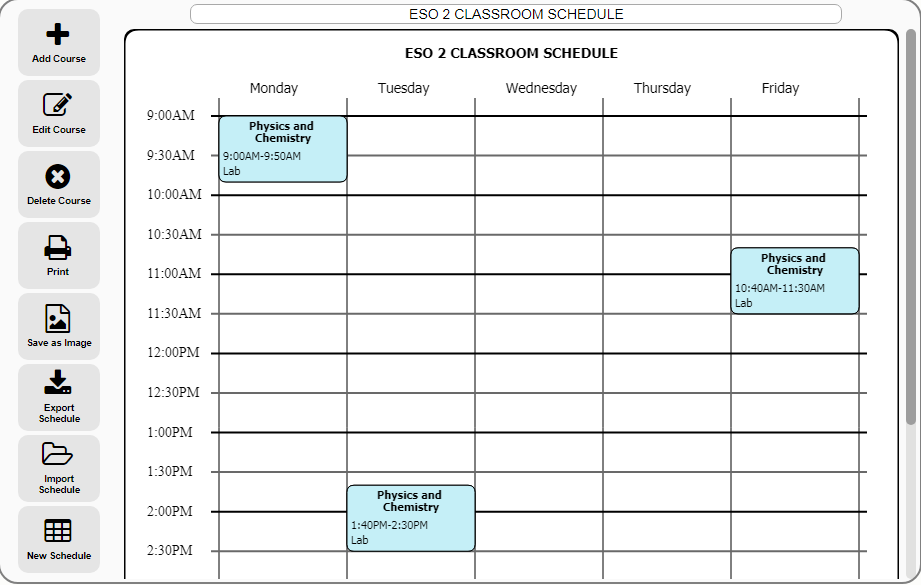
Here’s how the subject’s schedule appears in your weekly classroom schedule ...
Ana Losada e José Luis Murado. CC BY-SA
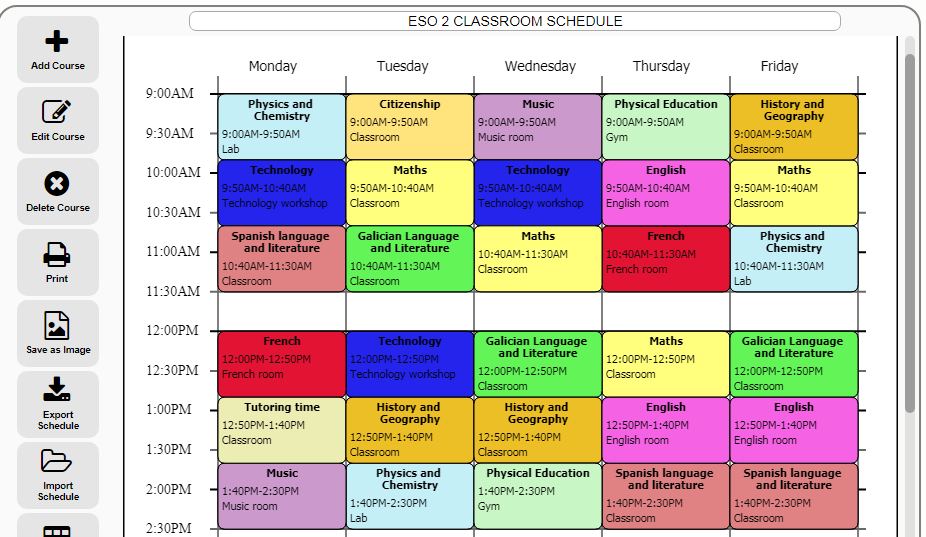
Repeat the same steps with the rest of the subjects. Here’s how a complete ESO 2 schedule may look like ...
Ana Losada e José Luis Murado. CC BY-SA
Step 4
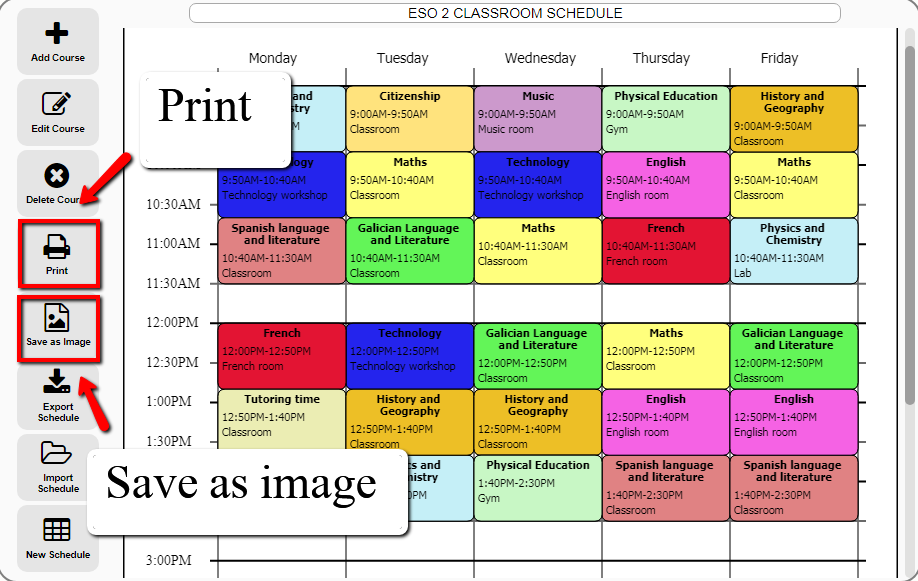
When your schedule is complete, you can print it, or save it as an image onto your computer for later. To do so, click PRINT or SAVE AS IMAGE.
Ana Losada e José Luis Murado. CC BY-SA
Step 5
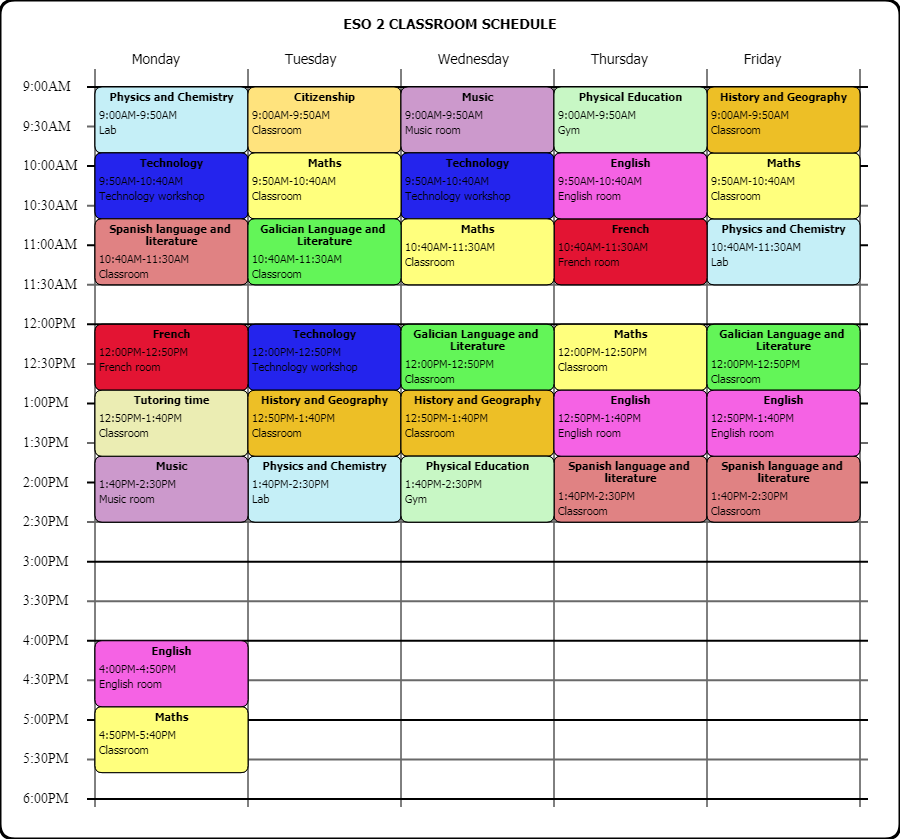
Here’s an example of a classroom schedule created and saved as an image.
Ana Losada e José Luis Murado. CC BY-SA